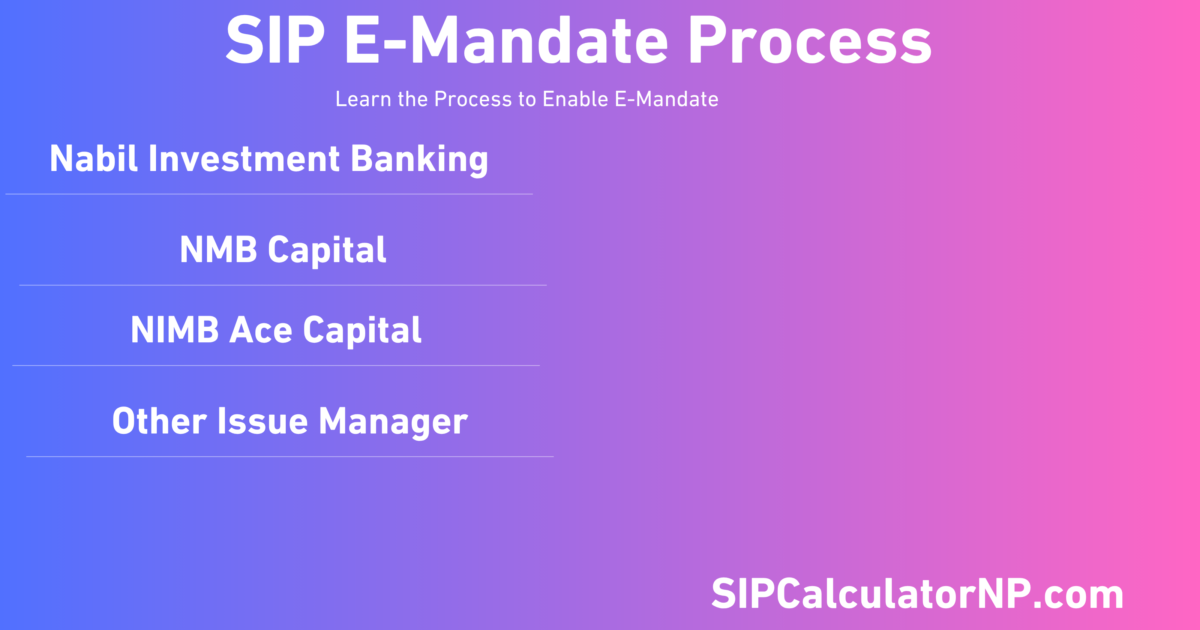
We all love automation these days. That’s why we don’t like to spend around 5-6 minutes every month just for paying the SIP Installments. However, if there are multiple SIPs in Different SIP Schemes to be paid every month, then it will become even more jargon to us. That’s why we need the SIP E-Mandate Process. With E-Mandate, you can automate your SIP installments every month without a manual and time-consuming process. Also, you can do this without missing any of the installments.
E-mandate availability varies by fund manager, scheme and portal. This guide covers the Nabil Investment Banking and NMB Capital processes checked for this article. Both processes redirect investors to ConnectIPS for mandate authorisation. Before starting, confirm that your bank account is linked and verified in ConnectIPS and that your selected SIP portal currently displays an E-Mandate option.
Understanding an E-Mandate Process in SIP
An E-Mandate is a digital instruction that authorizes your linked Bank in ConnectIPS to automatically deduct a preset amount from your account at regular preset intervals. This e-mandate process is the digital mandate process to allow your bank to make a payment with the preset instruction acknowledged/approved by you. Moreover, this E-Mandate process is similar to nBank SIP Automation. There, you acknowledge Nabil Bank’s nBank to schedule and transfer the payment automatically on the SIP Due Date with a preset Installment Amount.
How E-Mandate Works
After enabling the E-Mandate to your Bank Account linked with ConnectIPS, you are allowing your Bank to use your Account to pay the installment amount on the preset date to your issue manager. Furthermore, you can set up the payment banks and set the maximum limits per transaction and per month.
For example, if you enable E-Mandate for NMB Saral Bachat Fund E SIP from the NMB Capital SIP Login page, then you are allowing your ConnectIPS and Linked Bank, like Everest Bank, to pay the preset sum at the preset date to your Issue Manager (NMB Capital) for SIP.
SIP Enable E-Mandate Process: Set up SIP E-Mandate Process
Each fund manager uses its own portal, so menu names and screens may change. The examples below cover Nabil Investment Banking and NMB Capital. Always use the official portal and verify its domain before entering your SIP or ConnectIPS information.
E-Mandate Process for Nabil Investment Banking
Scheme: Nabil Flexi Cap Fund (NFCF) and NI 31
Link: Click Here,
Process:
- Log in to the Nabil Investment SIP Login Page,
- Go to the E-Mandates section,
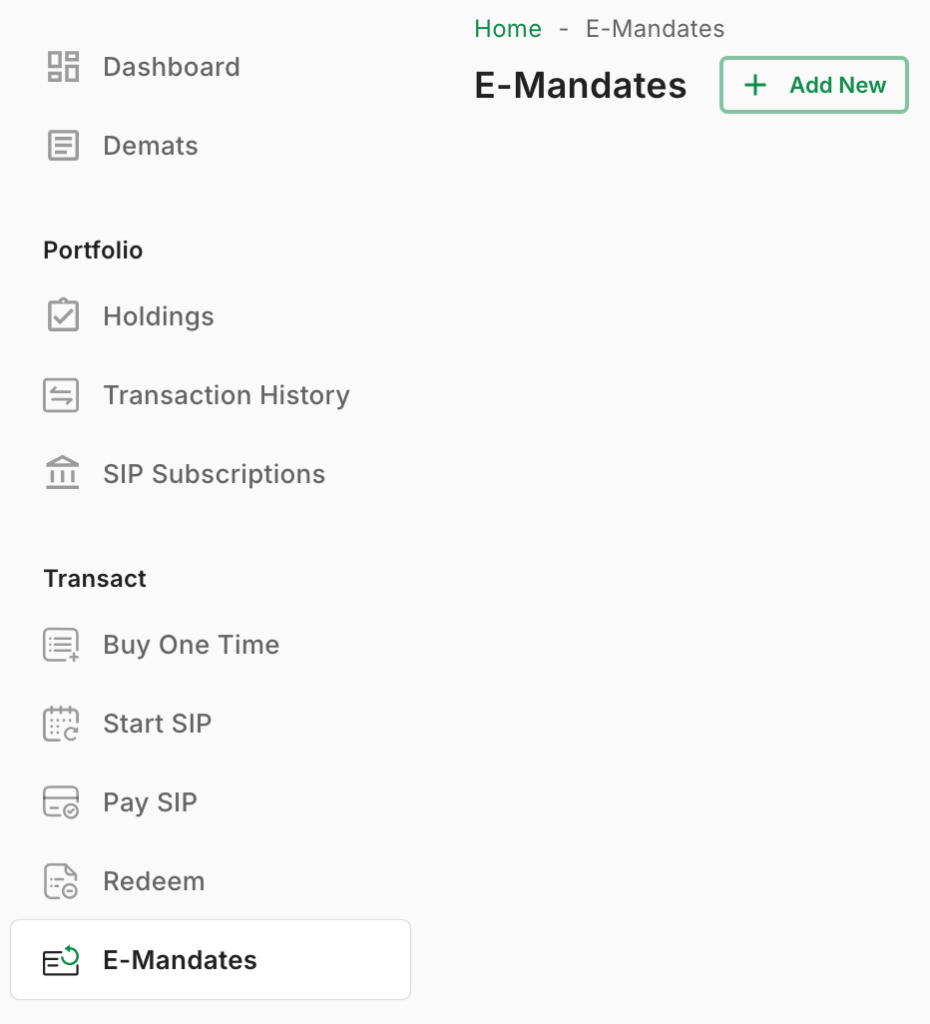
- Tap on Add New. It will open the pop-up where you have to fill out your details, including your Email Address registered in DEMAT & Nabil Investment, your Mobile Number linked (Registered) with Connect IPS, The Maximum Amount allowed the ConnectIPS and Bank to deduct per transaction, and Start and Expiry Date. Enter a maximum debit limit sufficient for the scheduled instalment and carefully review the start date, expiry date, amount and payment frequency before confirming. The portal and ConnectIPS will display the mandate details for your approval.
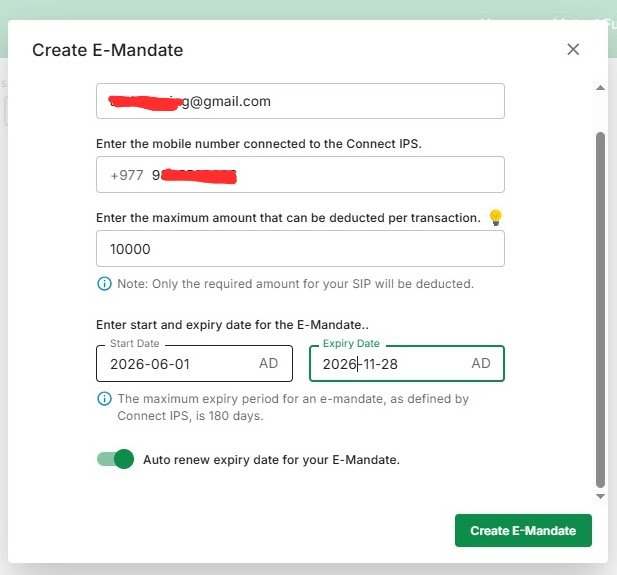
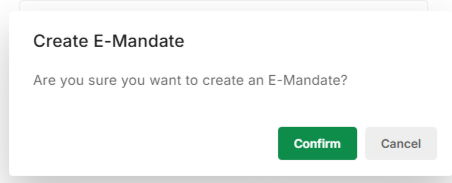
- Now confirm the SIP E-Mandate process by tapping on Confirm. It will redirect you to the ConnectIPS Login Page,
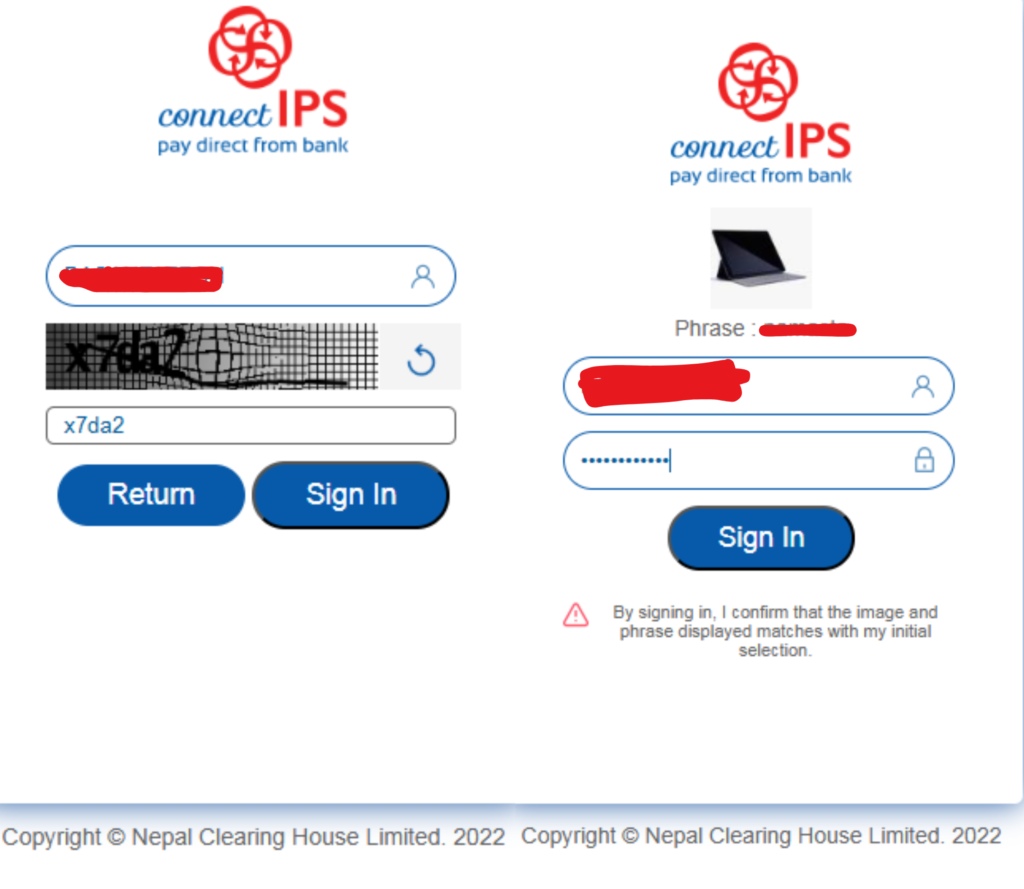
- Log in to your ConnectIPS account using your username and password.
- Now from the ConnectIPS Page, you will see the details of Creditors ‘Nabil Investment, including the Debtors Details, where your basic details are shown with SIP UserID,
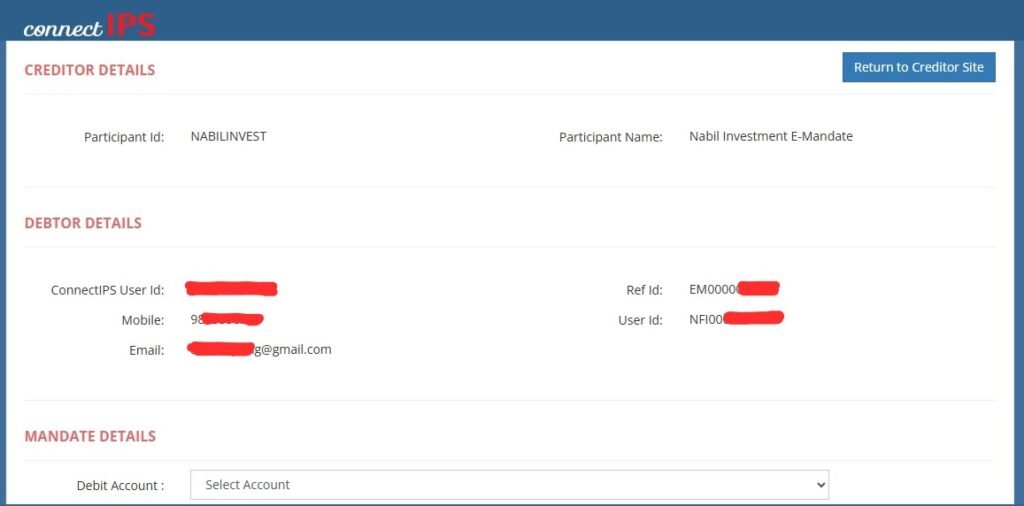
- Now fill out the MANDATE DETAILS with your Debit Account (From which you want to allow the set amount to be deducted). Here you have an option to choose any Linked Bank account there.
- Set the Transaction High Limit, Debit Type, and Allowed Transaction.
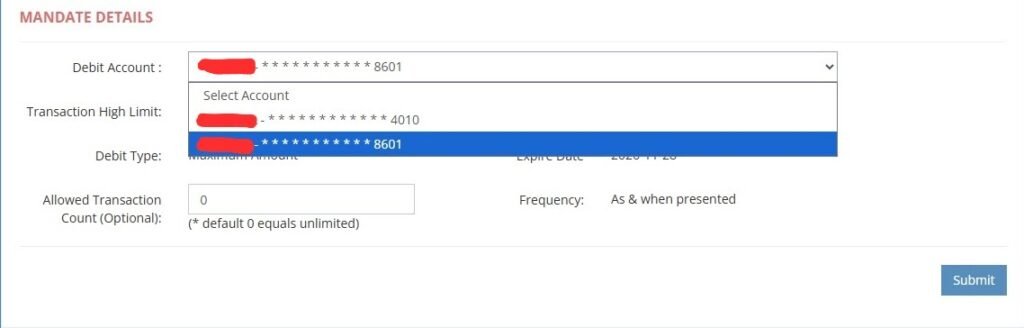
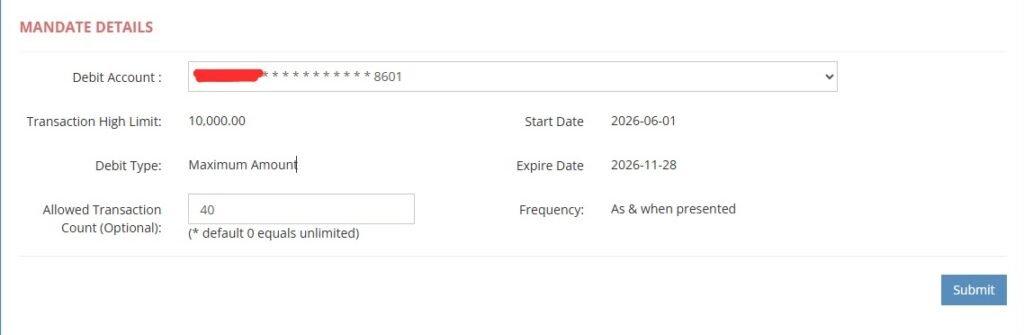
- Now tap on Submit, it will send the OTP to your registered mobile number of ConnectIPS,
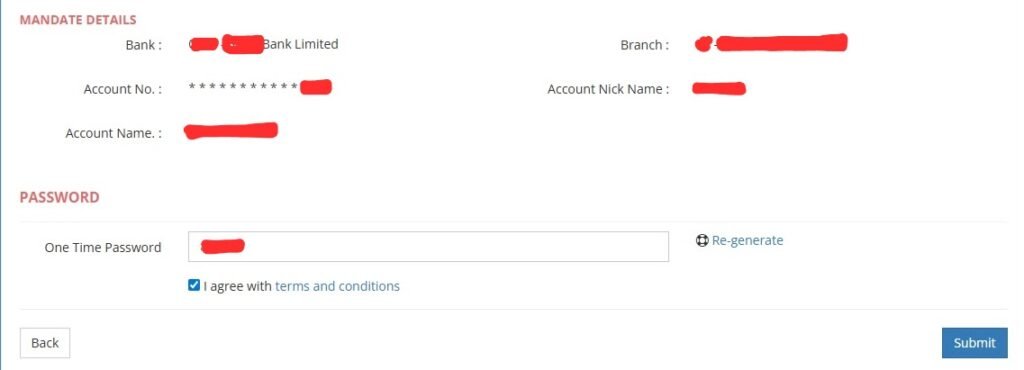
- Confirm the MANDATE DETAILS and enter the OTP, and then Submit.
- Now go to E-Mandate and tap on the toggle of Monthly to enable, Confirm E-Mandate, and that’s all.
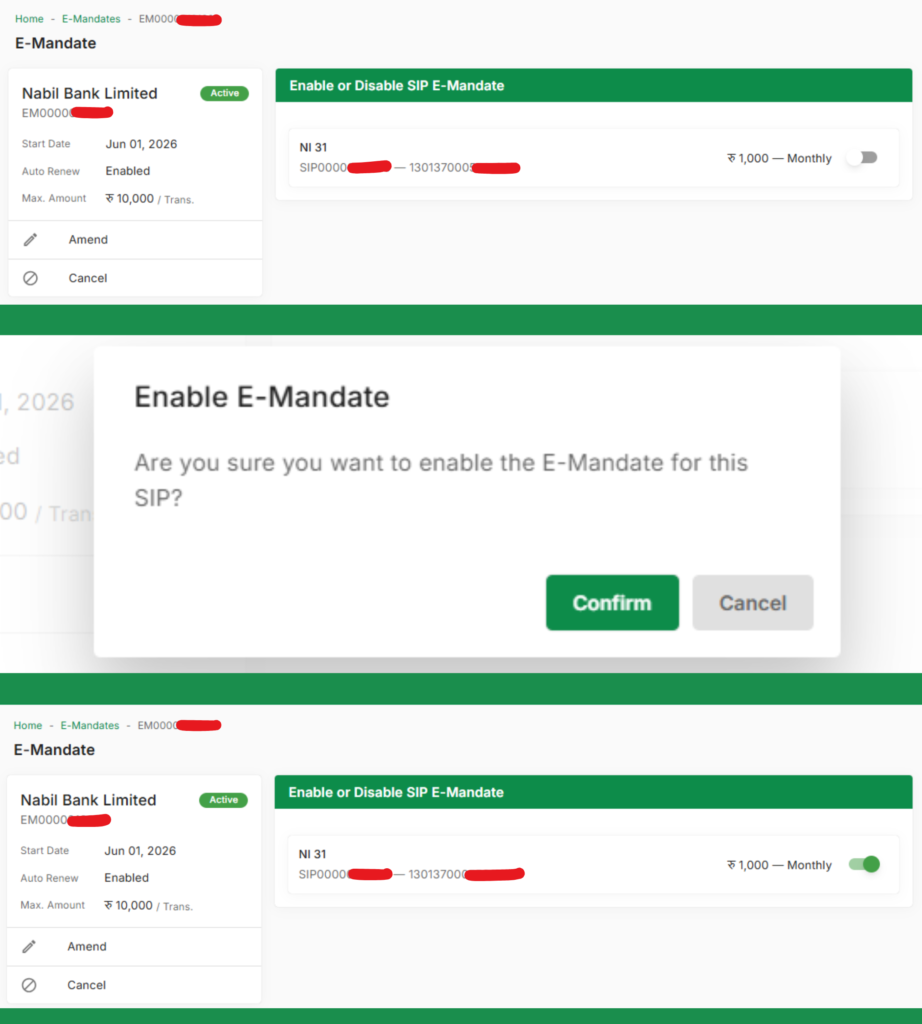
With this easy process, you can enable SIP E-Mandate Process for Nabil SIP. This process can work the same for both the Nabil Flexi Cap Fund and the NI31.
E-Mandate Process for NMB Capital
Scheme: NMB Saral Bachat Fund-E
Link: Click Here,
Process:
- Log in to NMB Capital SIP Page, and go to E-Mandate>E-Mandate. It will show the details of your SIP and your Personal Details there,
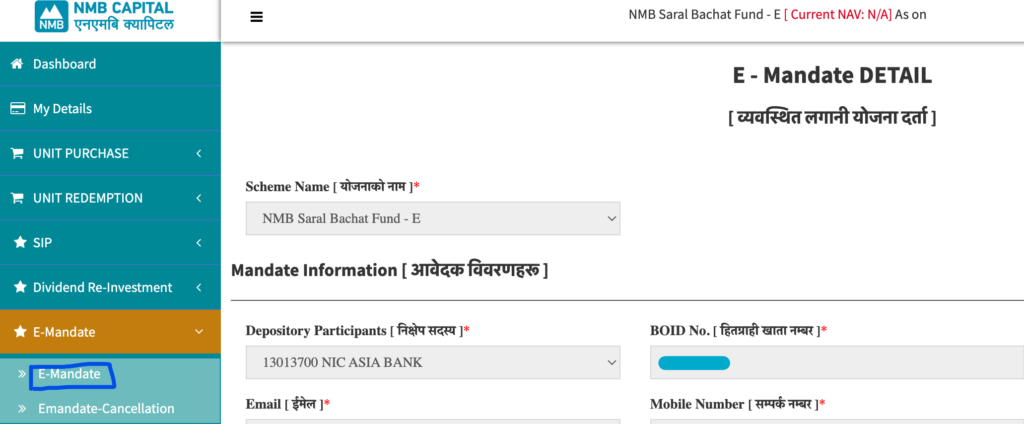
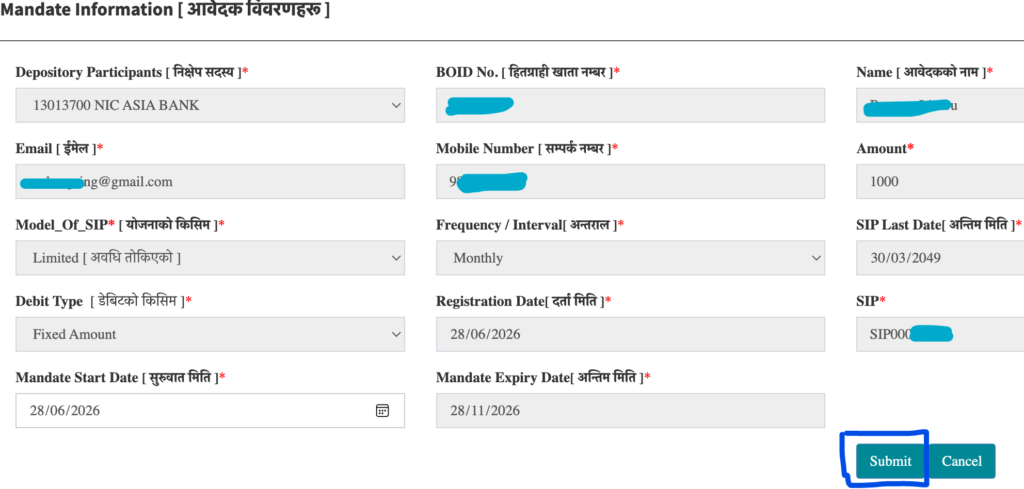
- Now enter the Mandate Start Date (You can enter today’s date there), and tap on Submit,
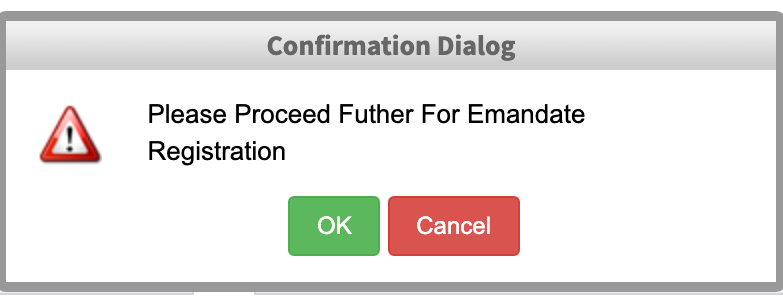
- Confirm the Further E-Mandate Process by tapping on OK as shown in the Pop-Dialog,
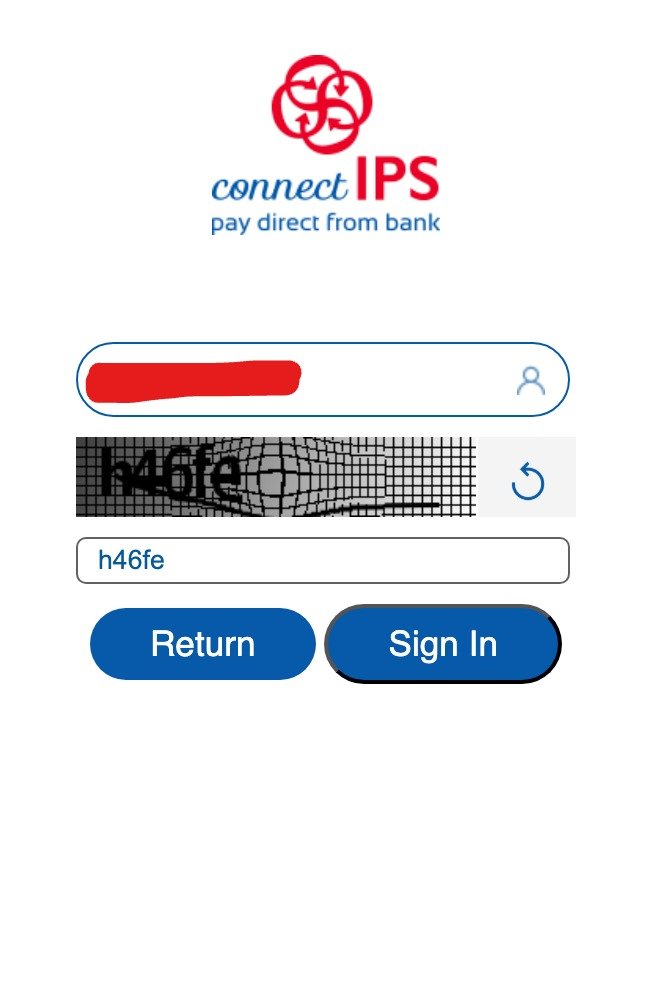
- Now it will redirect you to the ConnectIPS Login Page. Enter the Username and fill out the Captcha. Then, in the next step, enter your Username and Password and proceed to Sign In,
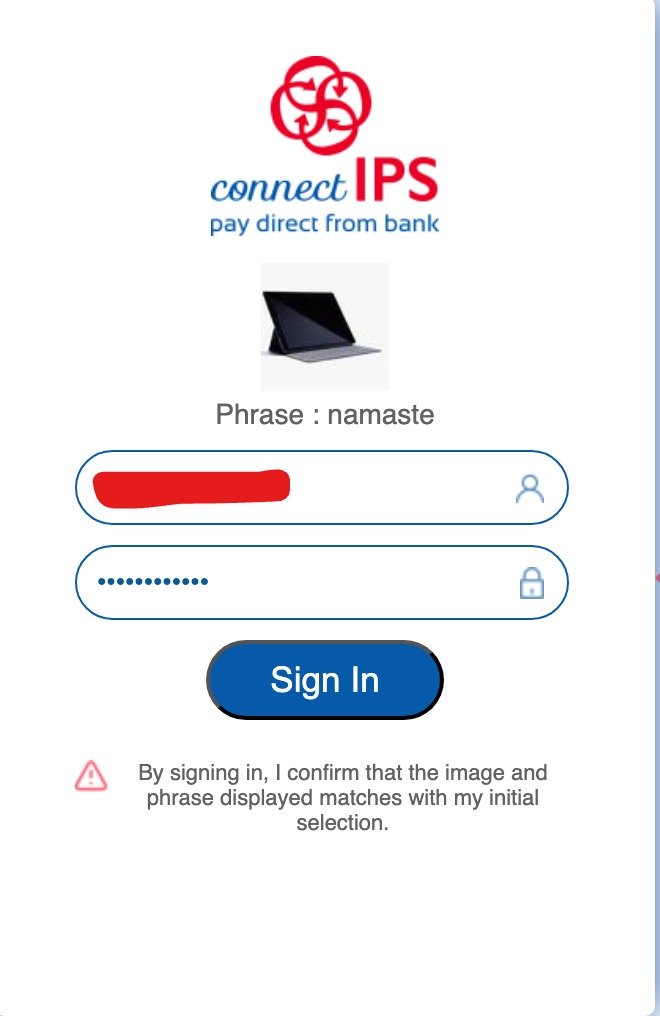
- After successful login, it will show the details of Creditor, Debtor, and Mandate Details, and confirm with OTP and submit.
- That’s all.
For ConnectIPS Steps, you can see the same process as Nabil Investment Banking. As ConnectIPS holds the e-mandate of all SIP Issue Managers, the steps in the ConnectIPS Portal are the same.
This guide documents the e-mandate processes available through the Nabil Investment Banking and NMB Capital portals when this article was checked. Other fund managers may use different payment methods or introduce e-mandates later. Before relying on automation, confirm the mandate status, debit amount, frequency and expiry date in both the fund-manager portal and ConnectIPS. After the first automatic debit, verify that the SIP instalment was credited successfully.